Want to edit your 360 footage in the AKASO 360 App but not sure how to import your files?
This guide walks you through three ways to import 360 footage into the AKASO 360 App, helping you avoid unnecessary steps during file transfers, save time, and get straight to editing.
Method 1: Connect Your AKASO 360 Camera to the App and Download 360 Footage
Best for: Transferring footage directly from your AKASO 360 camera to the App over Wi-Fi.
This method lets you download footage from the microSD card inside your camera without removing the card or using additional accessories.
Before you begin, make sure the microSD card is properly inserted into your AKASO 360 camera.
Step 1: Connect Your Camera to the AKASO 360 App
- Power on your AKASO 360 camera and enable the camera's hotspot.
- Turn on Wi-Fi and Bluetooth on your phone.
- Open the AKASO 360 App, tap the Device Connection icon, and follow the on-screen instructions to complete the connection.
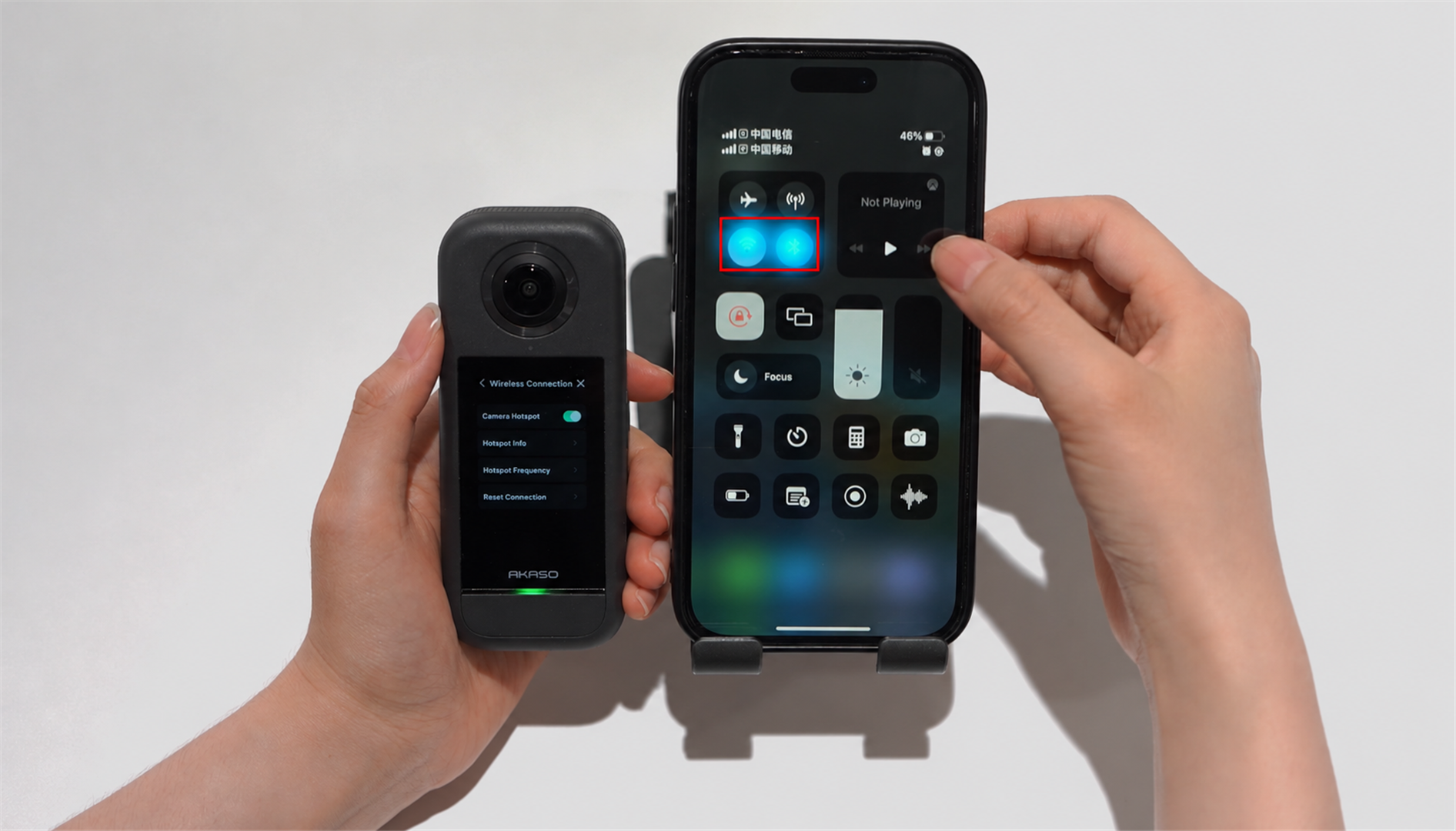
Step 2: Download Footage to the App
- Tap the Album icon in the App.
- Tap the checkmark (✓) icon in the upper-left corner and select the footage you want to download. You can select multiple files at once.
- Tap Download to save the selected files to your phone.
- Once the download is complete, a download icon (⭳) will appear in the bottom-right corner of the downloaded footage.
You can now access the downloaded footage in the AKASO 360 App and start editing.

Method 2: Access 360 Footage Using a microSD Card Reader
Best for: Editing footage directly from a microSD card without connecting your camera, saving time on camera connection and file downloads so you can start editing sooner.
Step 1: Insert the microSD Card Reader into Your Phone
- Remove the microSD card from your AKASO 360 camera.
- Insert the microSD card into a compatible card reader.
- Plug the card reader into your phone.
Step 2: Open the Footage in the AKASO 360 App
- Open the AKASO 360 App and tap the Album icon.
- At the top of the Album screen, select Open Folder as the footage source.
- Find and select the USB storage folder.
- Navigate to the folder containing your 360 video files.
- Grant the App permission to access the selected folder.
Once you've granted access, you can select your 360 footage and start editing directly in the AKASO 360 App, without downloading the files to your phone again.
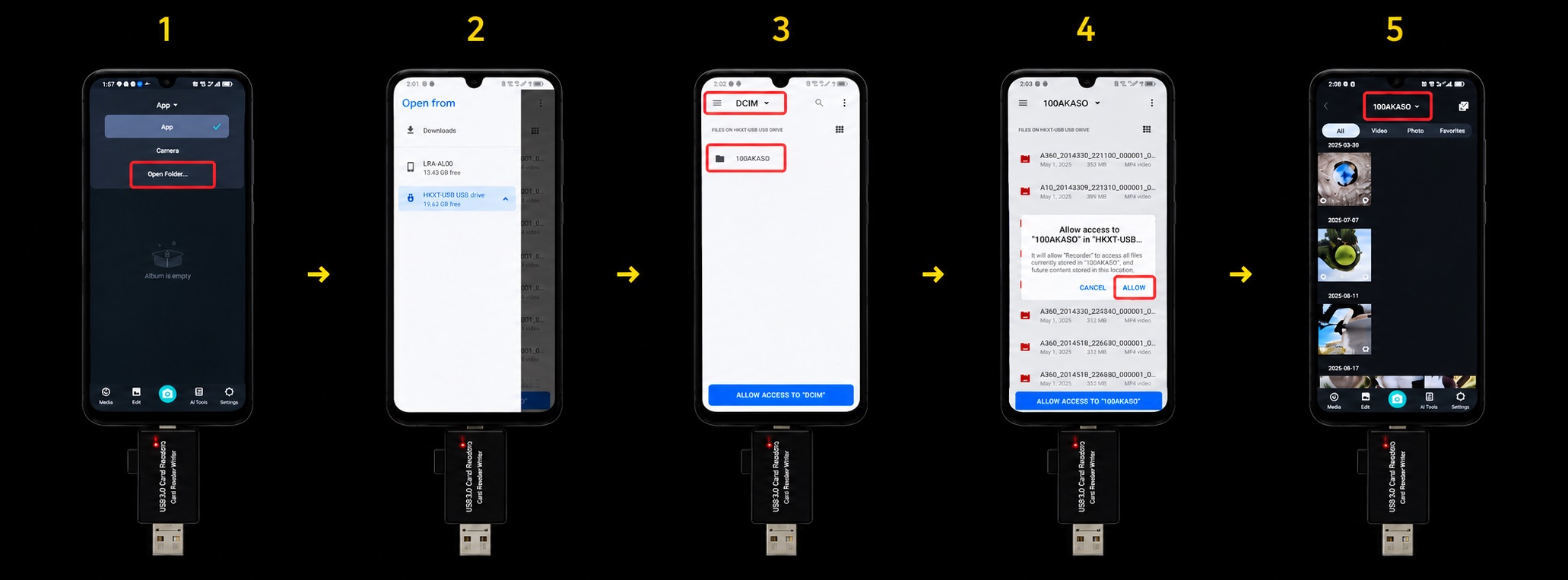
Method 3: Access 360 Footage Shared via Google Drive
Best for: Editing 360 footage shared by friends, family, or other creators.
If someone shares 360 footage with you through Google Drive, you can download the files to your phone and open them directly in the AKASO 360 App.
Step 1: Download the Footage from Google Drive
- Open the shared Google Drive link on your phone.
- Find the 360 footage you want to edit.
- Download the files to your phone's local storage.
Step 2: Open the Downloaded Footage in the AKASO 360 App
- Open the AKASO 360 App and tap the Album icon.
- At the top of the Album screen, select Open Folder as the footage source.
- Find and select the Download folder on your phone.
- Navigate to the folder containing the downloaded 360 video files.
- Grant the App permission to access the selected folder.
Once you've granted access, you can select the 360 footage and start editing directly in the AKASO 360 App, without downloading the files to your phone again.
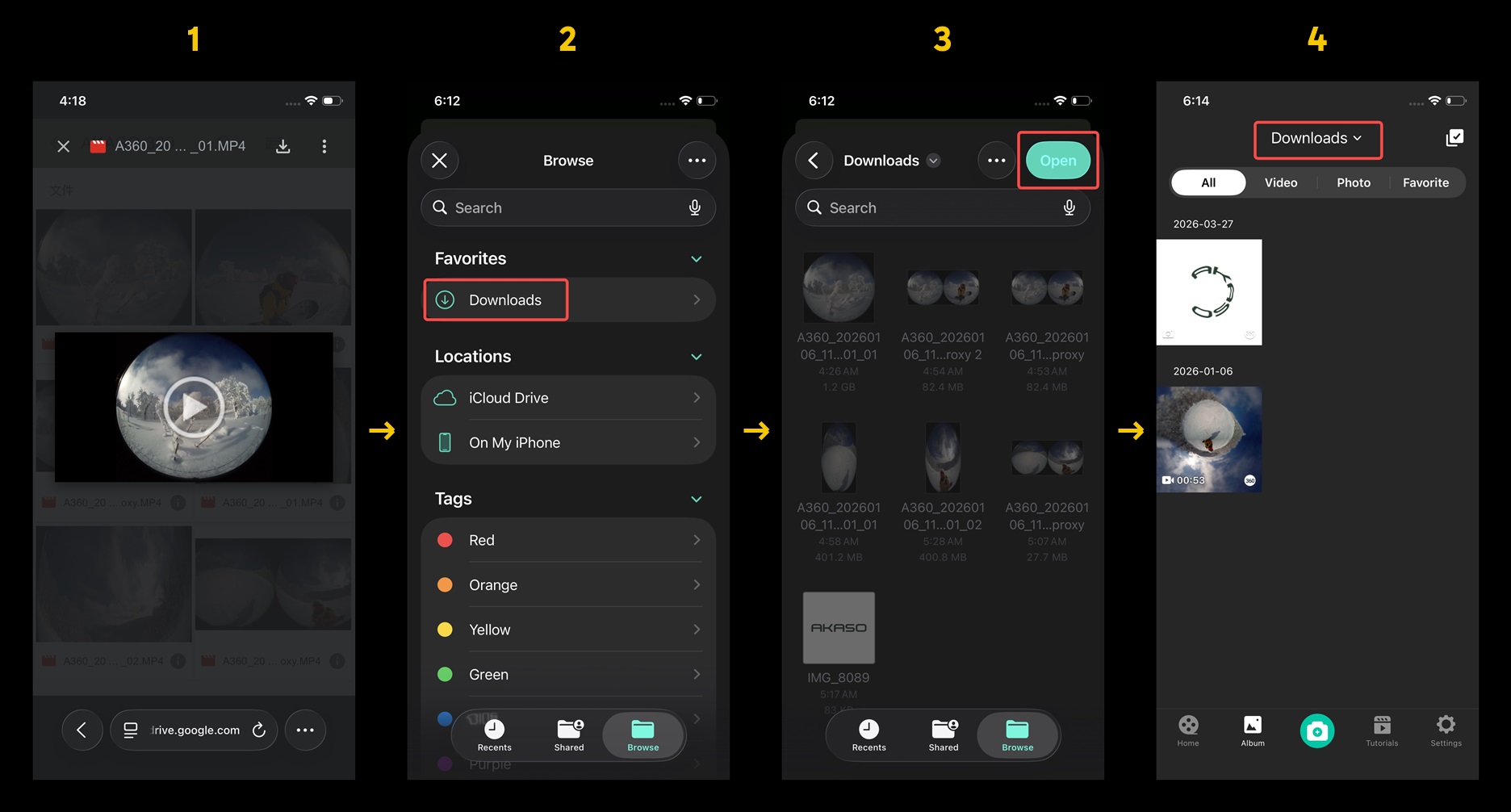
Quick Guide: Which Method Should You Choose?
| Method | Best for | Download required? |
|---|---|---|
| Camera Wi-Fi Connection | Footage stored on the microSD card inside your AKASO 360 camera | Yes, download from the camera to the App |
| microSD Card Reader | Footage stored on a microSD card | No, access the files directly |
| Google Drive | 360 footage shared by others | Yes, download to your phone first. No additional download in the App |
What's Next? Start Editing Your 360 Footage
Once your footage is accessible in the AKASO 360 App, you're ready to start editing.
Use Reframe editing mode to choose your favorite viewing angles, use projection effects (FOV) to create creative videos like Tiny Planet, or add keyframes to create smooth camera movements.
For a step-by-step editing guide, check out our How to Edit AKASO 360 Footage After Shooting: Mobile App Editing Tutorial.
FAQ
1. Do I need to connect my AKASO 360 camera every time I want to edit footage?
No. If your footage is already stored on your phone or accessible through a compatible card reader, you can use Open Folder to access the files without connecting your camera.
2. Can I download multiple 360 files at once?
Yes. When your camera is connected to the AKASO 360 App, you can select multiple files in the Album and download them together.
3. Do I need to download footage when using Open Folder?
No. Open Folder lets you access 360 footage directly from the selected folder without downloading another copy to your phone.
If your footage is shared through Google Drive, you still need to download it to your phone first.
4. Why can't I find my 360 footage in the AKASO 360 App?
Make sure you've selected the correct footage source and folder.
If you're using a card reader, check that it's properly connected and recognized by your phone. If you're using Google Drive, make sure the files have finished downloading to your phone.
Also, check that you've granted the App permission to access the selected folder.
Tips
View All > AKASO 360 Studio, 360 footage transfer, 360 video import, desktop editing, beginner tutorial, file management
3 Ways to Transfer and Import 360 Footage into AKASO 360 Studio
10/22/2026 Motorcycle Camera Angles, Motorcycle Camera Mounts, 360 Camera Motorcycle Filming, Motorcycle Riding Videos
7 Best Motorcycle Camera Angles for 360 Cameras
10/15/2026 Motorcycle Accessories, Motorcycle Camera Mounts, Motorcycle Filming, Motorcycle Riding, 360 Camera Accessories
Best AKASO 360 Accessories for Motorcycle Riding
10/14/2026