Want to edit your AKASO 360 footage on a bigger screen but not sure how to get your files onto your computer?
Here are three easy ways to transfer your 360 footage to your computer and import it into AKASO 360 Studio.
This guide walks you through each method, step by step.
Understanding Your AKASO 360 Original Video Files
Why do you see three files for a single 360 video? AKASO 360 records two original lens files and a lower-resolution proxy file for the same recording. Their filenames share the same recording information, with different endings:
_01: Original video from one camera lens._02: Original video from the other camera lens._proxy: A lower-resolution proxy file used for previewing. It is not a substitute for the original footage when editing at full quality.
Which files do you need for editing? Both _01 and _02 are essential for editing the original 360 footage in AKASO 360 Studio. These files contain the footage from both lenses needed to create the complete 360 view. If you're using the DNG8 feature, the _proxy file is also required.
The _proxy file is used for previewing and is not a substitute for the original footage.
Tip: When transferring or sharing 360 footage, keep all three files together and avoid renaming them. This helps AKASO 360 Studio recognize the files correctly.
For example, files from one recording may look like this:
A360_20250528_160256_000001_01A360_20250528_160256_000001_02A360_20250528_160256_000001_proxy
Changing filenames may prevent AKASO 360 Studio from matching related files correctly or locating the high-resolution footage.
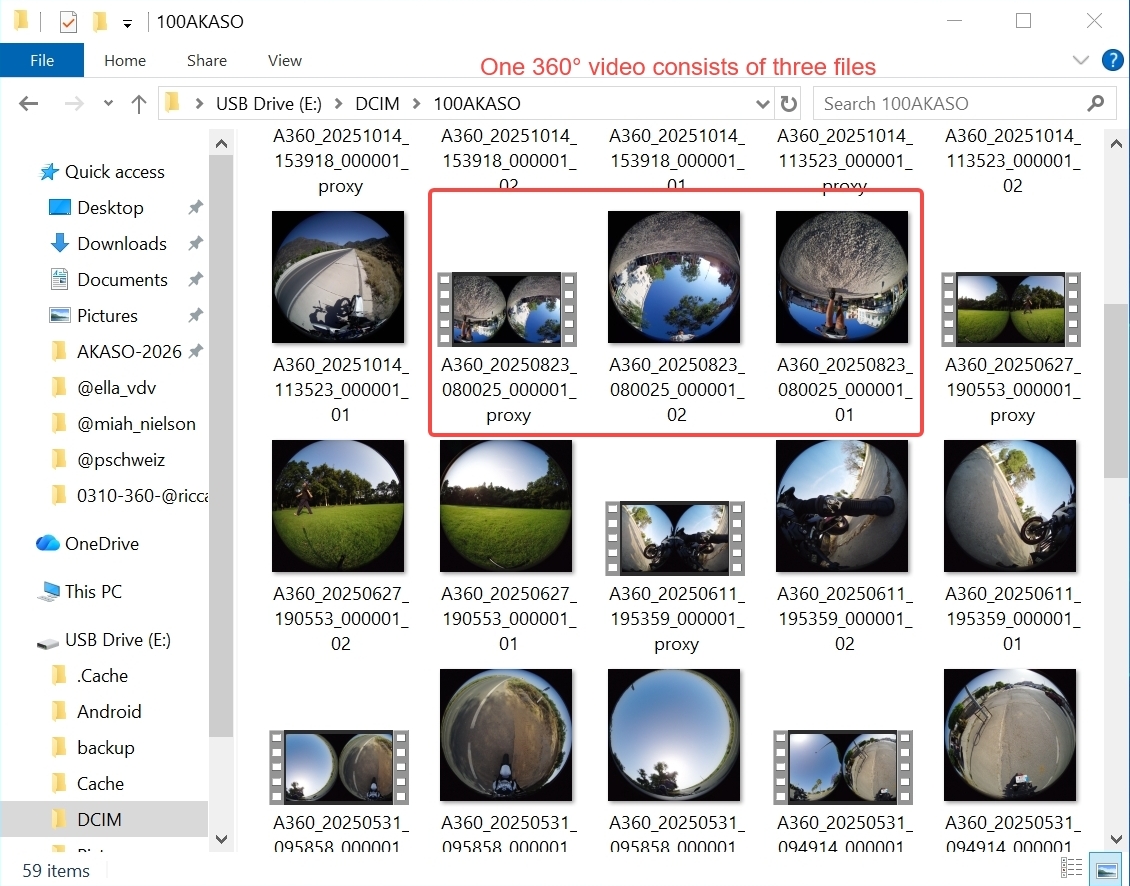
Method 1: Transfer 360 Footage Using a Card Reader
A card reader lets you access the footage stored on your camera's microSD card directly from your computer.
Step 1: Turn off your AKASO 360 camera, then remove the microSD card.
Step 2: Insert the microSD card into a compatible card reader.
Step 3: Connect the card reader to your computer's USB port.
Step 4: Open the SD card folder on your computer and locate your 360 footage. You can copy the files to a folder on your computer for local storage or prepare them for editing in AKASO 360 Studio.
Step 5: Open AKASO 360 Studio, click Import to select your 360 footage, or drag and drop the files into the software to start editing.
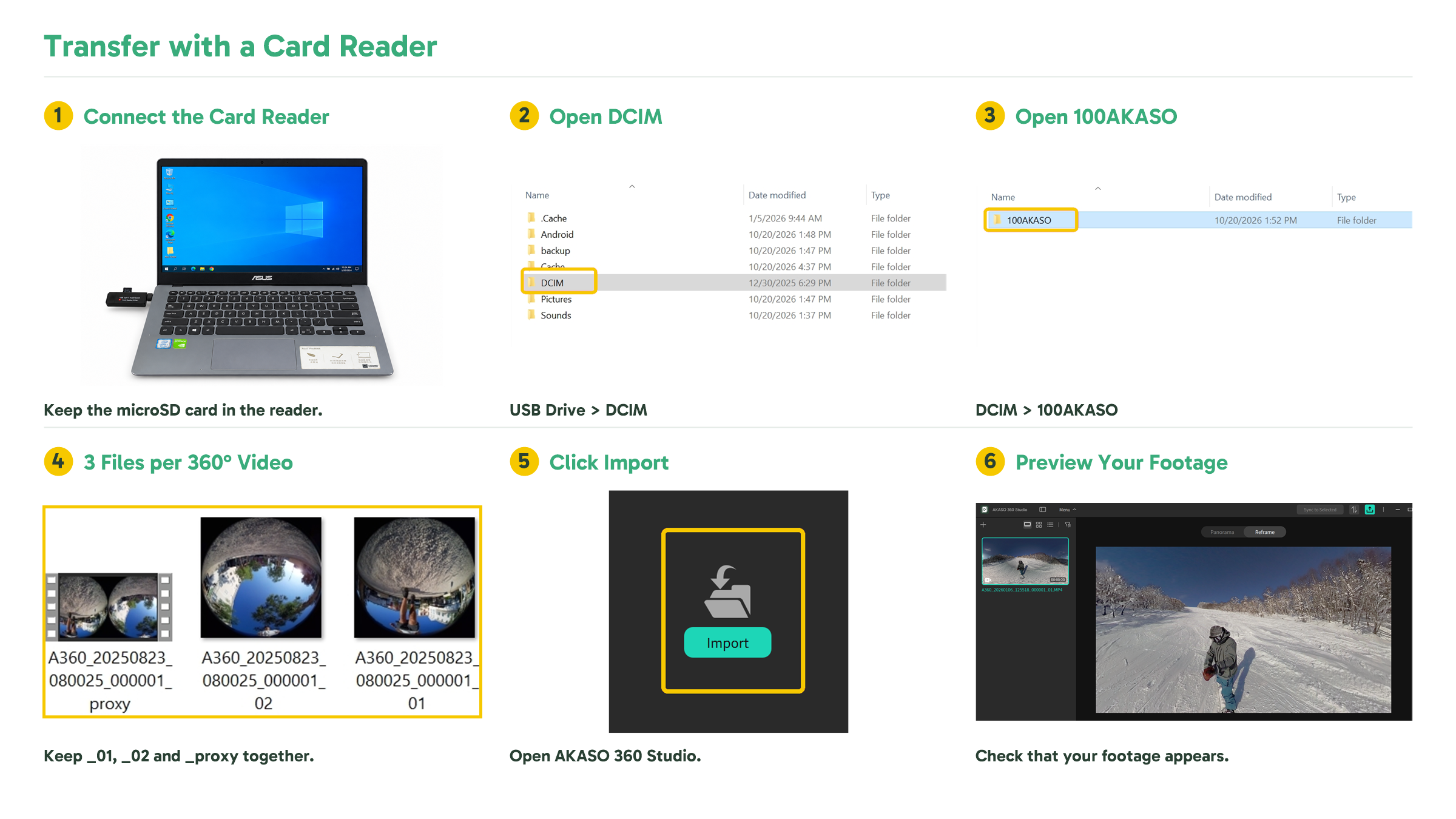
Method 2: Transfer 360 Footage Using a USB-C Cable
Don't want to remove your microSD card? You can also connect your AKASO 360 camera directly to your computer using a USB-C cable.
Step 1: Connect your AKASO 360 camera to your computer using a USB-C cable.
Step 2: When prompted on the camera, select USB Storage. The camera will confirm that it's connected to your computer.
Step 3: On your computer, navigate to the folder containing your 360 footage.
Step 4: Copy the files to your computer if you want to save them locally, or prepare them for editing in AKASO 360 Studio.
Step 5: Open AKASO 360 Studio, click Import to select your 360 footage, or drag and drop the files into the software to start editing.
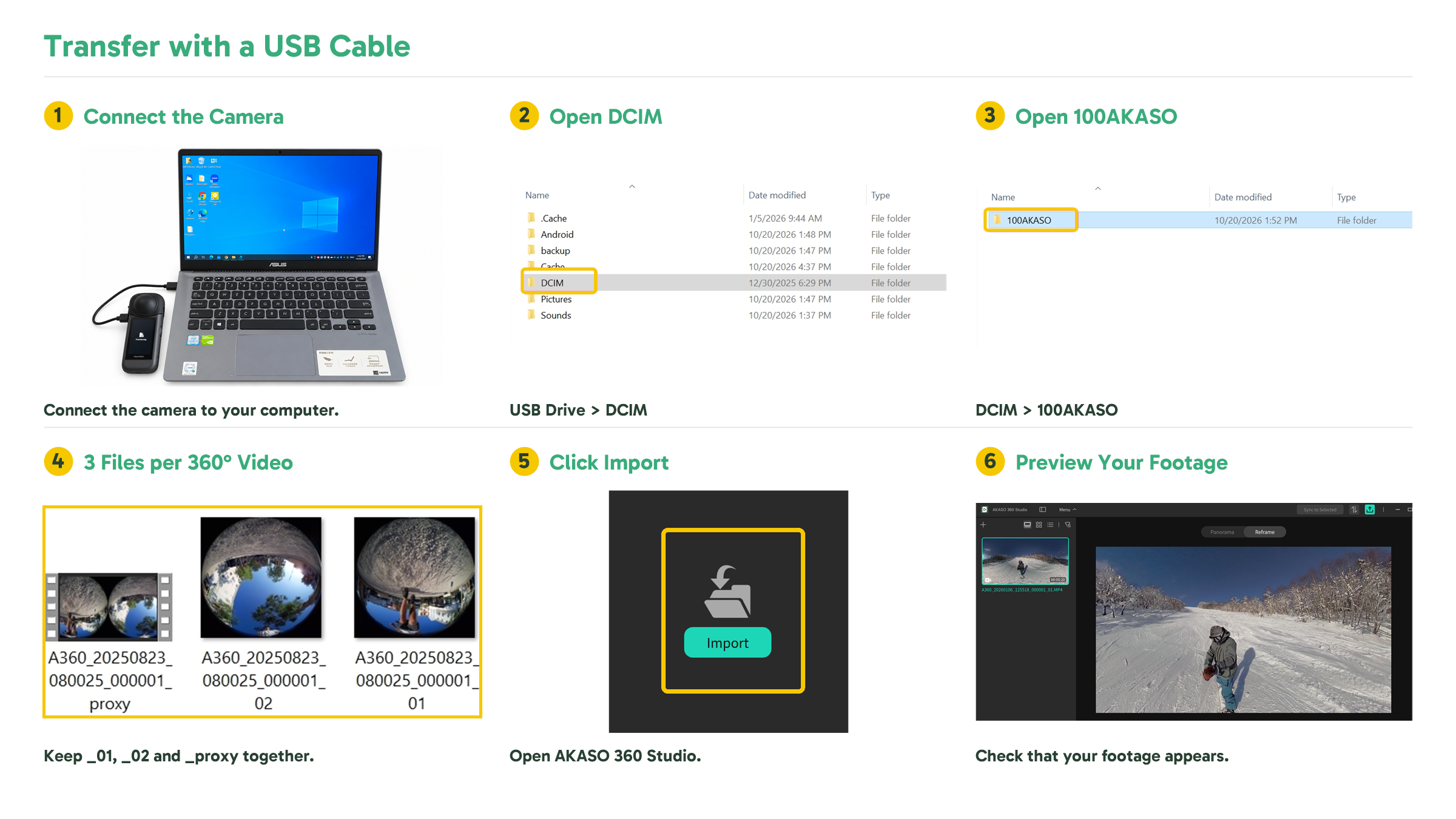
Method 3: Download Shared 360 Footage from Google Drive
Editing footage someone else shared with you? You can download the original 360 files from Google Drive and import them into AKASO 360 Studio.
Step 1: Open the shared Google Drive link on your computer.
Step 2: Find the 360 footage you want to edit and download the files.
Step 3: Once the files are downloaded, you can keep a local copy or prepare them for editing in AKASO 360 Studio.
Step 4: Open AKASO 360 Studio, click Import to select your 360 footage, or drag and drop the files into the software to start editing.

Ready to Edit in AKASO 360 Studio?
Once your footage is accessible on your computer, open AKASO 360 Studio and import the files you want to edit.
You can then preview your footage and choose the editing mode that fits your goal:
- Pano: Keep your footage as a 360 video so viewers can explore the scene in a supported 360 player or platform.
- Reframe: Choose your viewing angle and turn your 360 footage into a standard flat video.
Want to learn how to edit your 360 footage in AKASO 360 Studio? Watch our step-by-step video tutorial:
Tips
View All > 360 footage import, file transfer, mobile editing, beginner tutorial
3 Ways to Import 360 Footage into the AKASO 360 App
10/21/2026 Motorcycle Camera Angles, Motorcycle Camera Mounts, 360 Camera Motorcycle Filming, Motorcycle Riding Videos
7 Best Motorcycle Camera Angles for 360 Cameras
10/15/2026 Motorcycle Accessories, Motorcycle Camera Mounts, Motorcycle Filming, Motorcycle Riding, 360 Camera Accessories
Best AKASO 360 Accessories for Motorcycle Riding
10/14/2026