Choosing the Right microSD Card for AKASO 360
Choosing the right microSD card is one of the easiest ways to ensure smooth recording and protect your footage.
An incompatible card or incorrect file system can cause recording interruptions, SD card errors, import failures, or corrupted files.
This guide explains the microSD card requirements for AKASO 360, how to prepare a new card, and what to check if you run into storage-related issues.
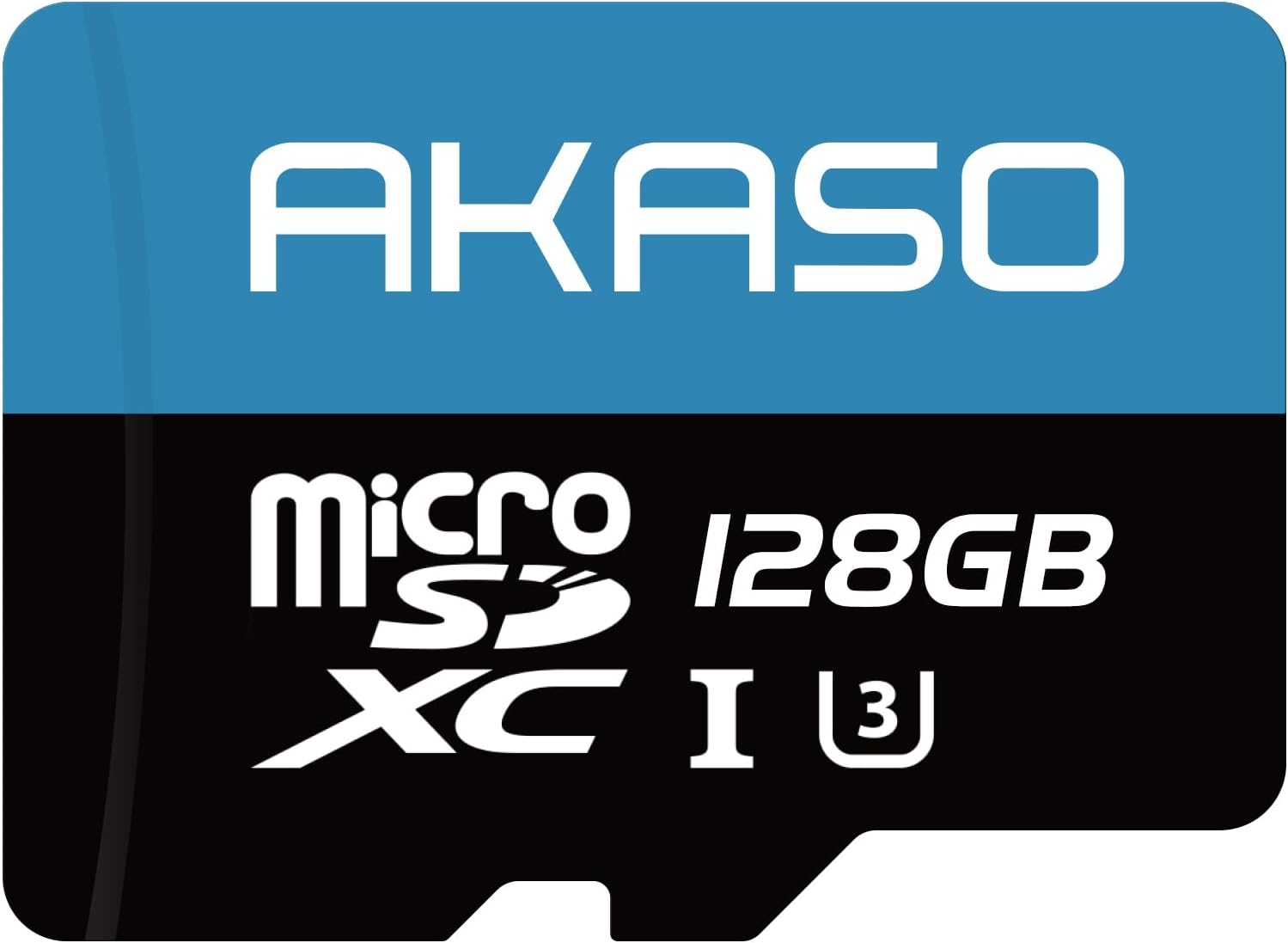
microSD Card Requirements
Before using a microSD card with AKASO 360, make sure it meets the following requirements.
Speed
- UHS-I V30
- UHS-I U3
- Or higher
File System
The microSD card must be formatted as exFAT.
AKASO 360 does not support other file systems, such as:
- FAT32
- NTFS
- EXT4
- APFS
If your card uses any of these formats, reformat it to exFAT before using it with the camera.
Capacity
- Maximum supported capacity: 512GB
- Recommended capacity: 256GB-512GB
Higher-capacity cards provide more recording time while maintaining stable read and write performance.
Choose a Reliable Card
For the best recording experience, use a genuine, high-speed microSD card from a trusted brand.
Avoid counterfeit, damaged, or low-speed cards, which may cause:
- Recording interruptions
- Dropped frames
- Corrupted footage
- Import failures
- Lost files
Estimated Recording Time
The following estimates are based on 5.7K at 30fps panoramic video.
- 64GB - About 70 minutes
- 128GB - About 140 minutes
- 256GB- About 280 minutes
- 512GB- bout 560 minutes
Actual recording time may vary depending on your recording settings.
Before Using a microSD Card for the First Time
If your microSD card has been used in another device, prepare it before recording with AKASO 360.
Before your first use:
- Back up any important files.
- Format the card as exFAT on your AKASO 360.
- Insert the card into your camera before recording.
Important: Formatting permanently deletes all data on the card. Always back up your files before formatting.
Tips for Stable Recording
To help prevent recording and storage issues:
- Do not remove the microSD card while recording.
- Do not power off the camera while files are still being saved.
- Back up your footage regularly.
- Reformat the card periodically after backing up your files.
These simple habits help keep your recordings reliable and your storage card performing at its best.
Troubleshooting Storage Problems
SD Card Error
If the camera displays SD Card Error, check the following:
- Is the card a supported UHS-I V30 or U3 microSD card?
- Is the card formatted as exFAT?
- Is the card fully inserted?
- Could the card be damaged or counterfeit?
Cannot Start Recording
If recording will not start, check whether:
- The card is full.
- The card is inserted correctly.
- The card meets the required V30 / U3 write speed.
- The card is formatted as exFAT.
Recording Stops Unexpectedly or Files Are Corrupted
If recording stops unexpectedly or files become corrupted, check:
- Whether you are using a high-speed microSD card.
- Whether the camera lost power during recording.
- Whether the card was removed before recording finished.
- Whether the card has not been reformatted for a long time.
Tip: If the camera loses power while recording, do not remove the microSD card. Turn the camera back on first. In many cases, AKASO 360 can automatically repair the last recording.
Still Need Help?
If you have completed all the checks above and the issue continues, please contact AKASO Support and provide the following information:
- microSD card brand
- Card capacity
- Speed class, such as U3 or V30
- Whether the card has been formatted as exFAT
- Camera firmware version
- A description of the issue, for example: SD Card Error, cannot record, card not recognized, or import failed
Providing this information will help our support team troubleshoot your issue more quickly.
Complete Your AKASO 360 Setup
Get ready for longer shoots with AKASO 360 cameras and compatible accessories.
Tips
View All > Motorcycle Camera Angles, Motorcycle Camera Mounts, 360 Camera Motorcycle Filming, Motorcycle Riding Videos
7 Best Motorcycle Camera Angles for 360 Cameras
10/15/2026 Motorcycle Accessories, Motorcycle Camera Mounts, Motorcycle Filming, Motorcycle Riding, 360 Camera Accessories
Best AKASO 360 Accessories for Motorcycle Riding
10/14/2026 AKASO 360 tutorials, mobile video editing, 360 video clarity, troubleshooting, beginner guide
AKASO 360 App Guide: Tutorials, Tips & Troubleshooting
10/14/2026