How to Make a Rotating Time-Lapse Video with the Rolling Time SmartClip Template
Want a rotating time-lapse—without rotating gear or complicated editing?
Keep your AKASO 360 still and shoot a time-lapse. The “Rolling Time” SmartClip template automatically turns your 360° footage into a smooth rotating view. No rotating gear. No manual keyframing.
Here’s how to shoot your clip and create your video.
What You Need
- AKASO 360 camera
- A tripod
- A selfie stick, if needed to adjust the camera’s height
- The AKASO 360 App on your phone
What Can You Shoot with Rolling Time?
Choose a scene with movement or changes you can capture over time:
- Sunrises and sunsets: capture the changing light.
- Drifting clouds: watch the sky change above your surroundings.
- City traffic and crowds: record the flow of vehicles and people.
- Seaside and lakeside views: capture moving water and the scenery around it.
- People in motion: follow the activity unfolding within the scene.
You can also try other scenes that keep changing over time.
Step 1: Set Up the Camera and Record
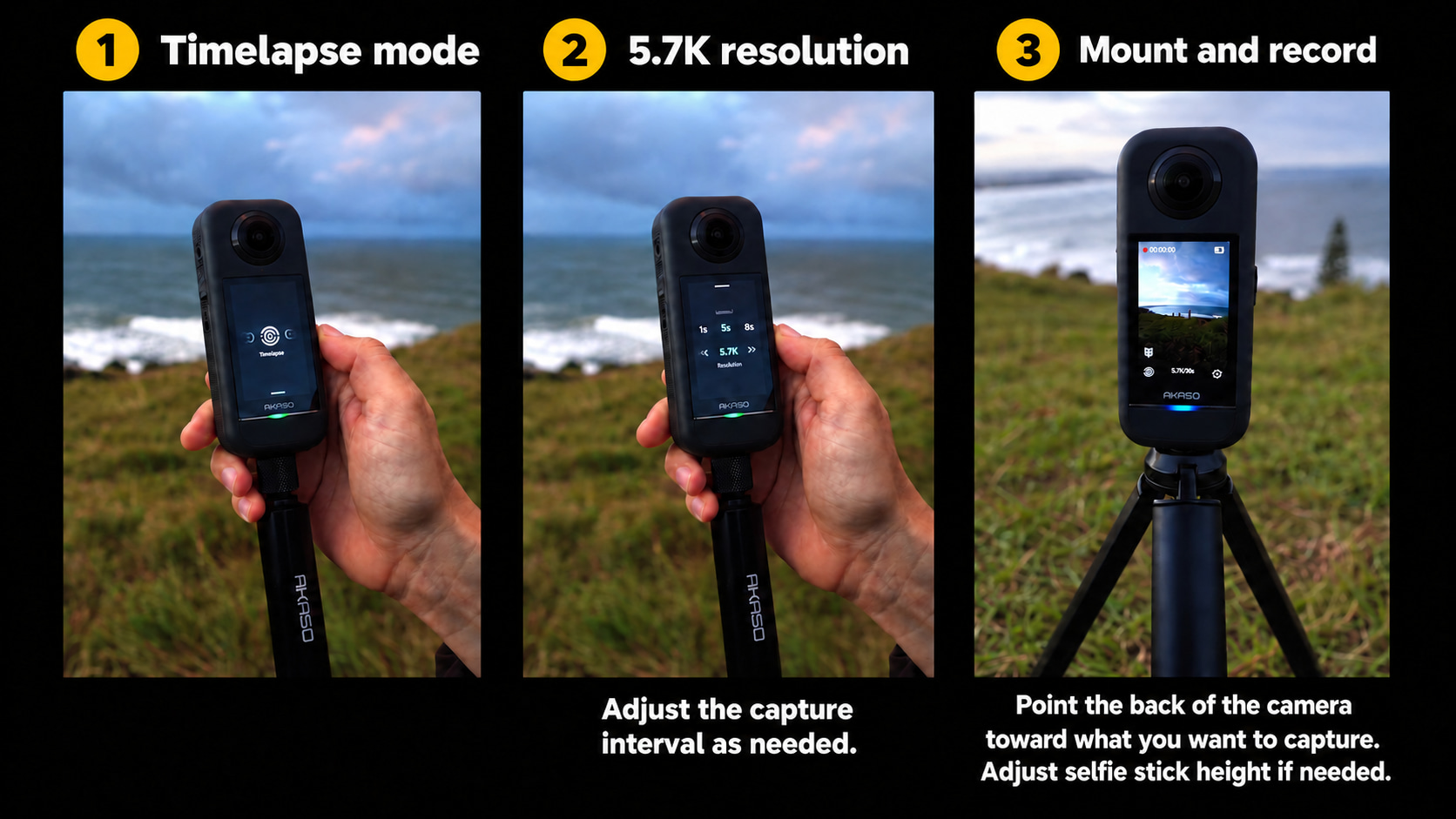
Switch your AKASO 360 to Timelapse mode and set the resolution to 5.7K. Adjust the capture interval as needed for your scene.
Point the back of the camera toward what you want to capture. Secure it on a tripod and start recording. If you’re using a selfie stick, adjust its height as needed before you begin.
Step 2: Use the Rolling Time SmartClip Template
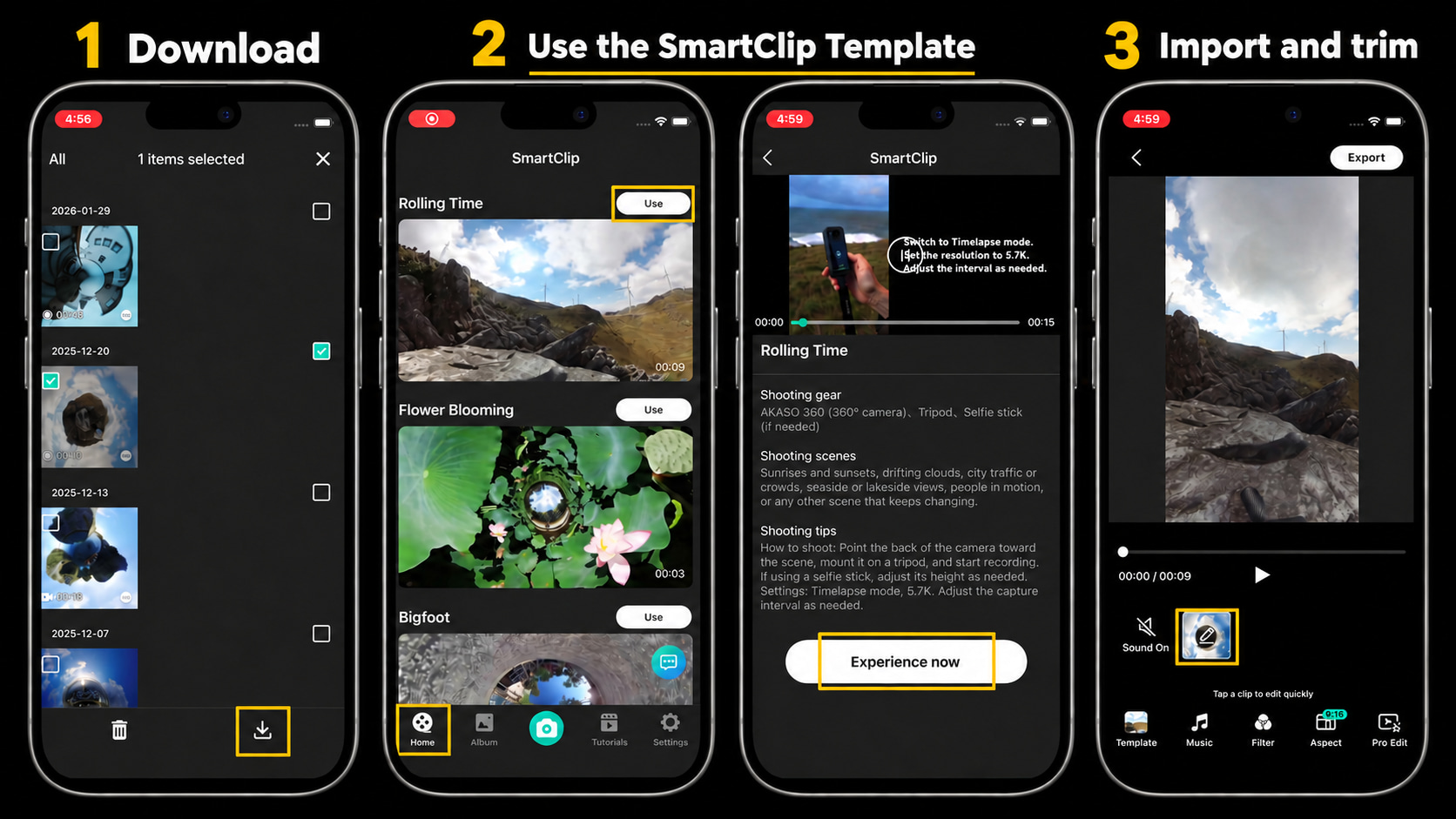
- In the AKASO 360 App, open Album, select your clip, and tap the download icon.
- Go to Home, find Rolling Time, and tap Use, then Experience now.
- Import your clip. Tap its edit thumbnail to trim it to the section you want to use.
Step 3: Customize Your Video
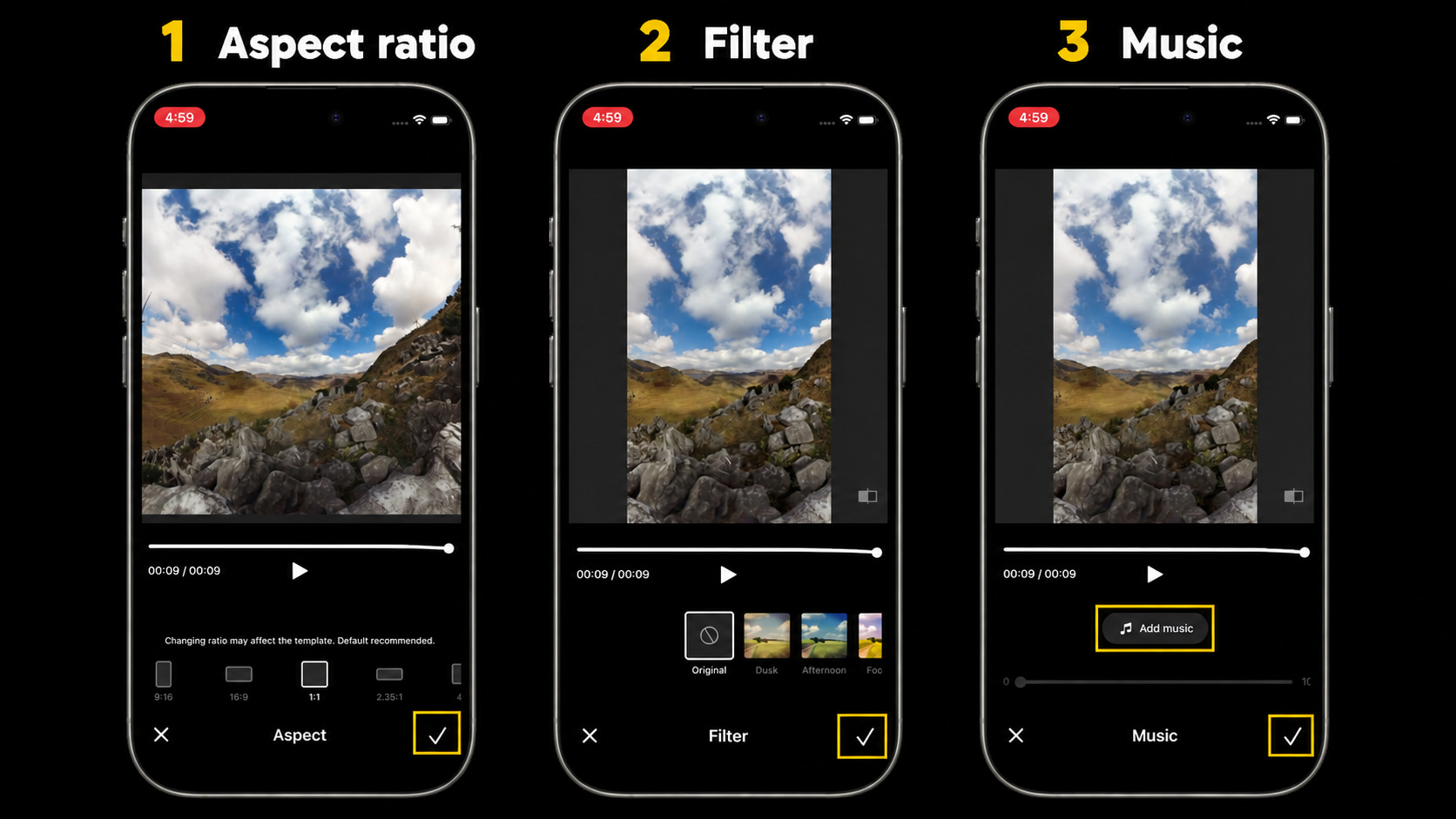
Use Aspect to choose your video’s aspect ratio, Filter to adjust its look, and Music to add a soundtrack. Confirm each choice with the checkmark.
Step 4: Export in 4K
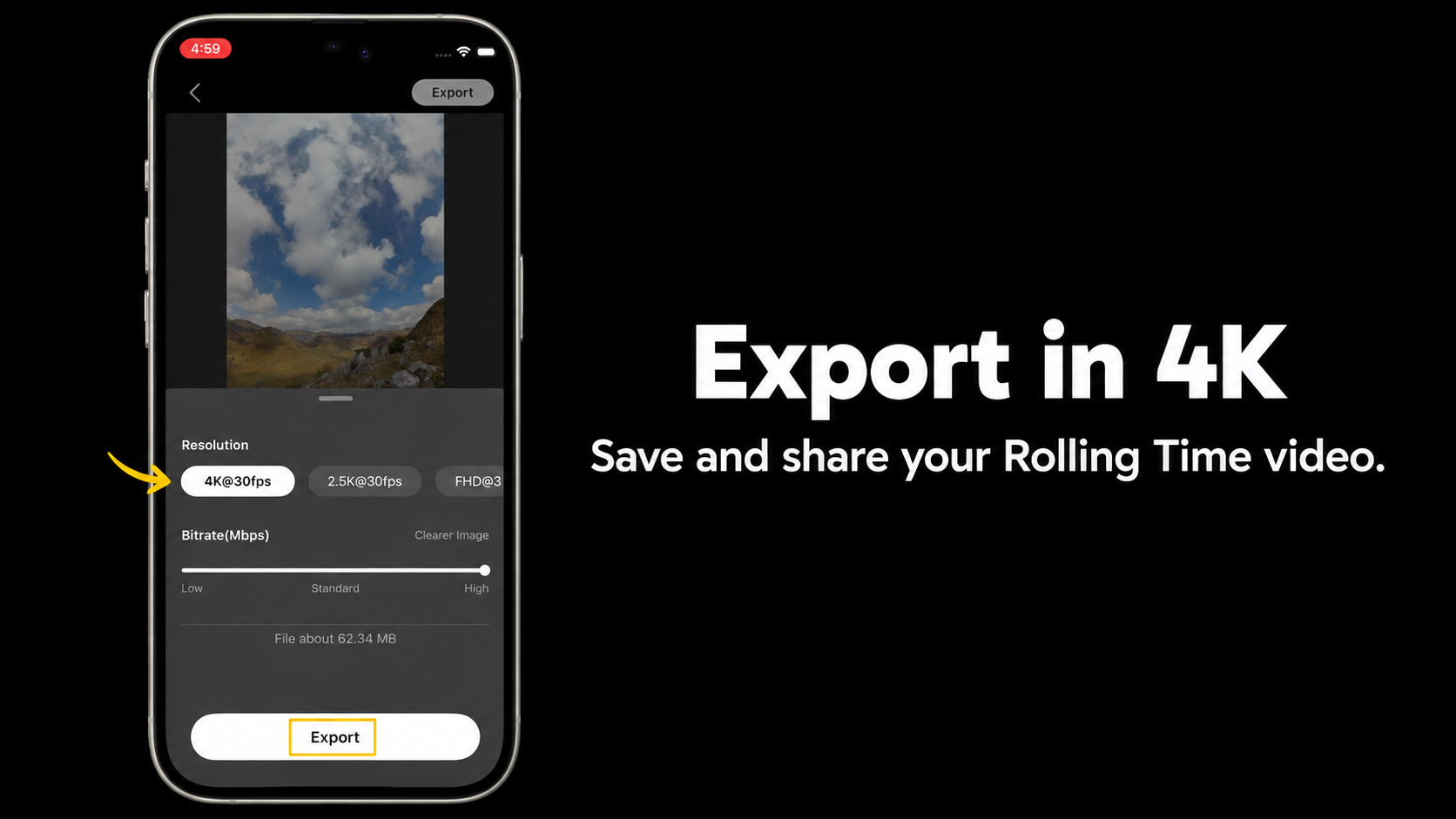
Tap Export, select 4K, and confirm to save your finished video.
Share Your Rolling Time Video
Try Rolling Time on your next outing, then share your video with friends or post it with #ShareWithAKASO. Show us how you capture time in motion!
Tips
View All > SmartClip template tutorial, Beginner-friendly, Step-by-Step, Creative video
How to Make a Giant Foot 360 Video with the “Bigfoot” SmartClip Template - A Step-by-Step Beginner’s Guide
09/10/2026 SmartClip template tutorial, Beginner-friendly, Step-by-Step, Creative 360 video,motorcycle video, cycling video
How to Make a Creative 360 Riding Video with the “Riding Ferris Wheel” SmartClip Template - A Beginner’s Guide
09/03/2026 SmartClip tutorial,Beginner-friendly,Step-by-Step,motorcycle video
How to Use the “Racing Tiny Planet” SmartClip Template: A Step-by-Step Guide for Beginners
08/31/2026